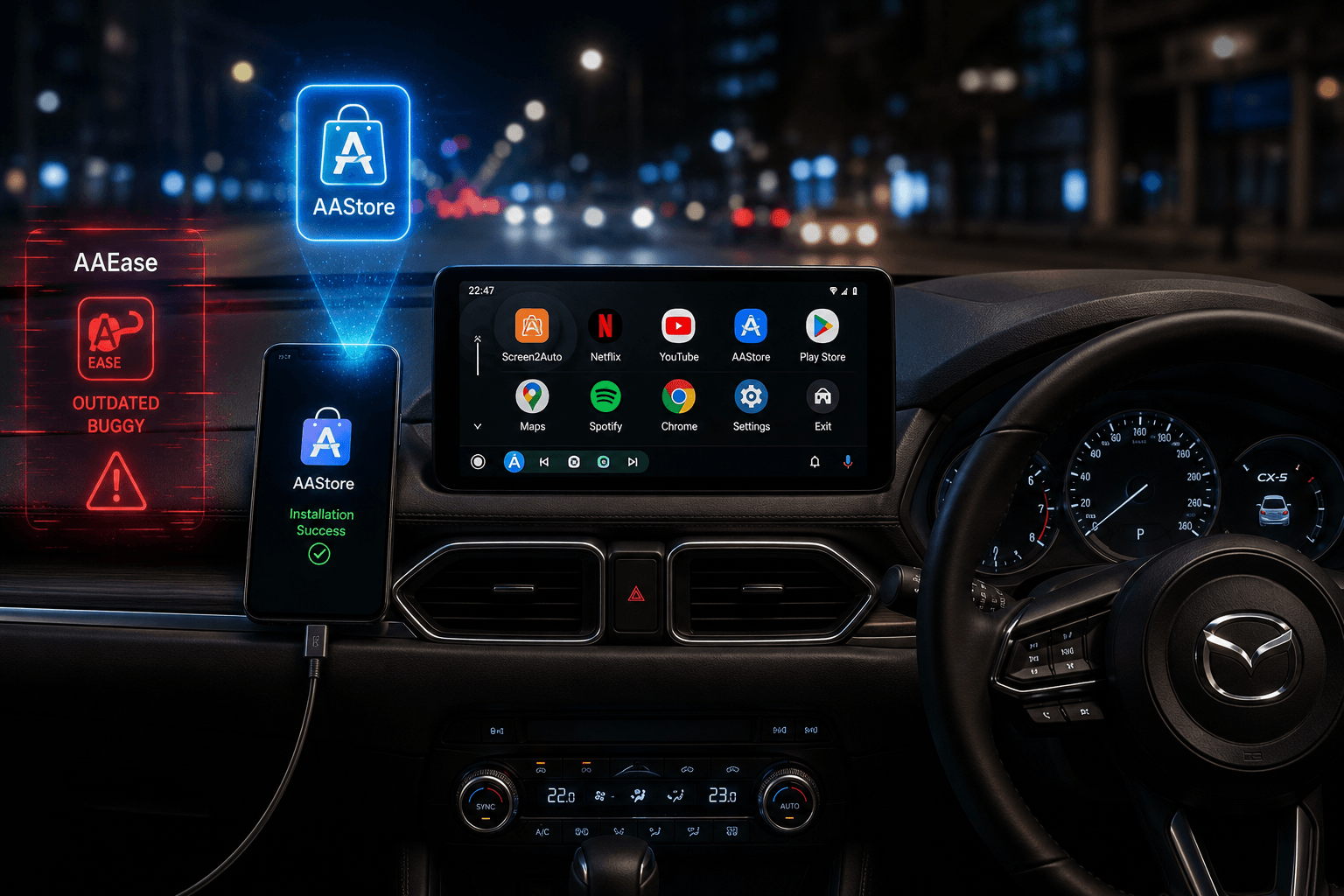
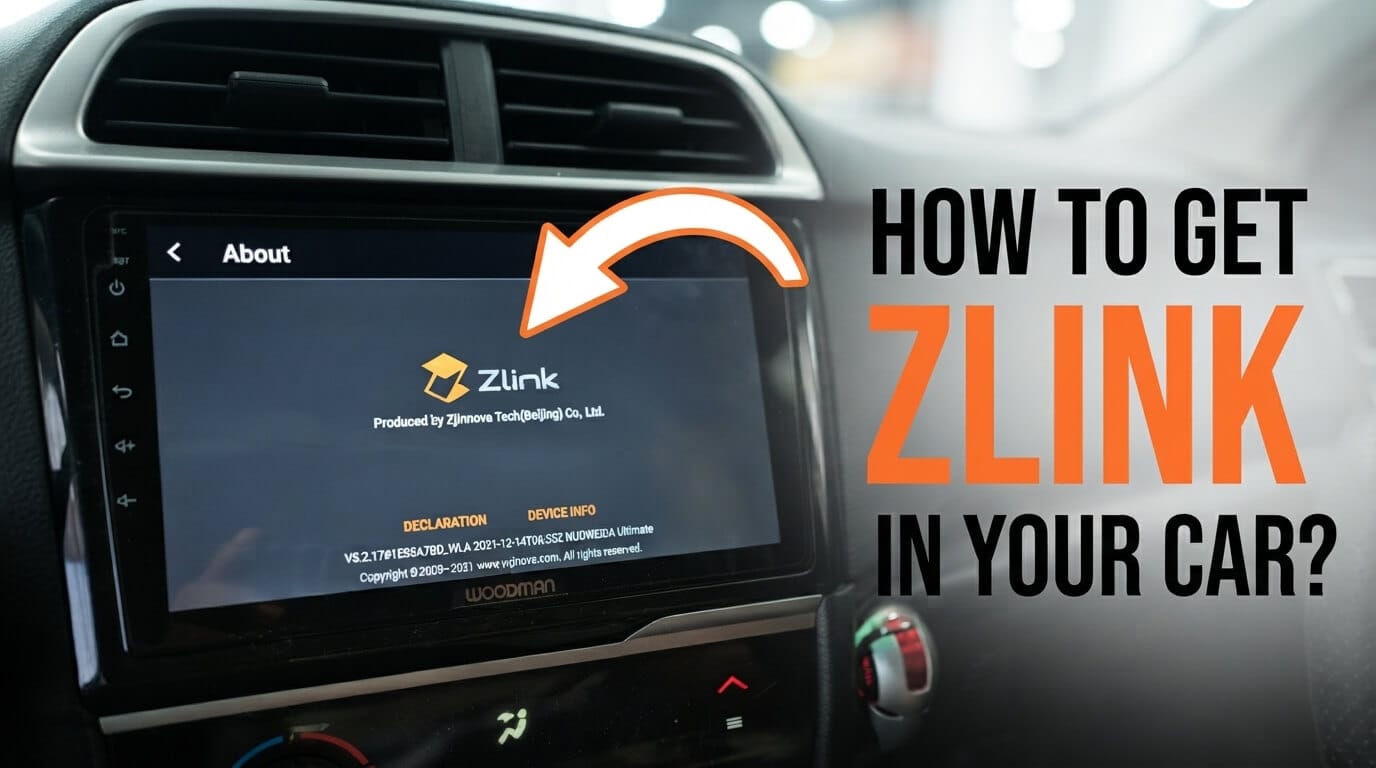
To install or update the ZLink app on an Android car stereo, download the correct APK binary file matching your chip architecture (T5 or TS10) from an official repository like zlink5.com and sideload it via a FAT32 USB flash drive. To watch YouTube videos over the active connection, use safe utility tools like AA Store or AAAD to download Screen2Auto for seamless full-screen mirroring.
Last Updated: July 12, 2026
If you have an aftermarket Android head unit (like Eonon, Joying, or Junsun), you might have noticed how easily things can go wrong. A simple factory reset or a quick system update can suddenly wipe your ZLink app. Since ZLink isn't a regular app from the Play Store, it can be a real headache to get it back.
But don’t worry restoring it is actually quite easy. Whether you need to fix a missing app or update your Android car stereo software to fix bugs, we have you covered.
There is one more thing to keep in mind. when ZLink is working perfectly, Google blocks video apps like YouTube for safety reasons. You cannot watch videos on your car screen by default.
In this guide, we will show you how to safely reinstall or update your ZLink5 app to the latest version. We will also show you how to use simple mirroring tools to unlock YouTube, so you can enjoy your favorite content whenever you are safely parked.
Before You Start: Quick Checklist
To avoid app crashes, pairing loops, or update failures, make sure your hardware matches these baseline requirements:
- Car Head Unit: Android 9.0 or higher (Updating your car stereo's core firmware first is highly recommended for stability).
- Your Smartphone: Android 11.0 or newer (mandatory for wireless Android Auto data transfer).
- USB Flash Drive: Formatted to FAT32 with at least 4GB of free space.
- A Quality Cable: Use a high-quality data USB cable (cheap, charging-only cables will constantly drop connection during the setup phase).
Step 1: How to Install or Reinstall Zlink on Your Android Auto Head Unit
If you are looking for how to upgrade your Android car stereo software to fix bugs or restore a missing ZLink app, follow these steps to get the latest version safely:
- Download the Correct File:
- Go to the Official Zlink Page
- Download the ZLink5 or ZLink6 APK.
- Important: Ensure the file version matches your car stereo’s chip architecture (like TS10 or T5). Using the right file prevents future crashes.
- Move the File to Your Car:
- Save the downloaded APK to a FAT32-formatted USB flash drive.
- Plug the USB into your car’s media port.
- Install the App:
- On your car screen, open the File Manager or APK Installer app.
- Always scan downloaded APKs for viruses before installing
- Locate the ZLink file on your USB and tap Install.
- (Note: If it’s blocked, go to your head unit’s Settings > Security and toggle on "Allow installation from Unknown Sources").
- Complete Activation:
- Connect your car stereo to your phone’s Wi-Fi Hotspot.
- Open the ZLink app. It will automatically connect to the server, verify your license, and finalize the update.
Step 2: How to Unlock YouTube After Installing Zlink
Once your updated ZLink bridge is active, you can bypass Google's rigid display restrictions using one of these two verified, non-root methods to get YouTube running smoothly on your android auto.
Method 1: AA Store to Screen2Auto
This is the most stable way to get full screen mirroring working over your car dashboard.
If you want to see the complete setup walkthrough with clear screenshots, troubleshooting tips, and configuration settings, check out our Full Screen2Auto Installation Guide to get started.
Method 2:AAAD to Screen2Auto
If AA Store fails to load on your specific mobile model, Android Auto Apps Downloader (AAAD) is your best fallback option.
Follow our complete Screen2Auto Installation Guide for full setup walkthroughs, troubleshooting tips, and all the configuration settings you need.
Comparison: Stock ZLink vs. Enhanced Mirroring
| Feature | ZLink Status | YouTube Support | Recommended Method |
|---|---|---|---|
| Stock ZLink | Default | No | N/A |
| Screen2Auto | Active | Yes (Full) | AA Store |
Lightweight Alternative Apps to Explore
If full phone mirroring feels a bit too heavy or laggy on your specific smartphone, you can use your custom installer app (AA Store or AAAD) to download these lighter alternatives:
CarStream
The absolute best option if you only want YouTube. It directly injects a clean, car-optimized desktop layout of YouTube straight onto your dashboard. You can log into your profile, browse your feed, and play videos without casting your whole phone screen.
Fermata Auto
A powerful local media player client. It features built-in YouTube streaming and a built-in web browser, but it also allows you to play video files directly from an attached USB stick or your phone's local storage.
Hardware Compatibility Checklist
Many budget car screens online spoof their specifications (showing fake RAM layouts or spoofed Android versions). When figuring out how to update your Android car stereo, understanding your actual hardware limits is vital. To make sure your system has the true horsepower to run video streams smoothly at 60FPS, download an app like CPU-Z on your car stereo and check your core hardware specifications.
Verified Head Unit Platforms:
- FYT / Top way TS10 & T5 Systems: Flawless wireless handshakes. Excellent processing speeds over 5GHz Wi-Fi networks. Updating your system firmware on these platforms frequently fixes legacy ZLink dropping issues.
- Joying & Eonon Screens: Fast activation. Occasionally requires the Bluetooth audio routing fix to skip background audio lag.
- Junsun & Hikity Stereos: Sideloading via a standard USB flash drive successfully restored missing native apps after a hard factory reset.
Technology in the aftermarket car space moves fast, and keeping your ZLink software current is the best way to avoid those frustrating connection loops. We hope this guide helped you get your system back on track. If you run into any specific bugs or hardware quirks not mentioned here, feel free to drop a comment below or check our latest compatibility logs. Happy driving, and remember: keep the videos for the parking lot only!
Frequently asked Questions & Troubleshooting
- Why is my ZLink stuck on the "Waiting for Activation" loop?
- The app cannot talk to its license registry server to verify its hardware token. Make sure your car stereo is actively connected to your phone's Wi-Fi hotspot during its very first boot. Turn your phone's Bluetooth off and back on to kickstart the sync process.
- Why is the Screen2Auto icon missing from my car screen app drawer?
- Android Auto detected the app as an unapproved tool and hid it. Un-install the app and make sure you do not download the Screen2Auto APK directly from a web browser. It must be installed via an installer utility like AA Store or AAAD. Also, double-check that "Unknown Sources" is toggled ON in your phone's Android Auto developer mode.Still deciding between mirroring apps? Check out how Screen2Auto compares to ScreenOnAuto.
- How do I fix annoying wireless audio and phone call lag on ZLink?
- Wireless connections compress maps, touch data, and audio into one single heavy Wi-Fi stream. The car stereo takes a second to unpack it, causing a 1-to-3 second audio delay.Open the ZLink Settings directly on your car screen. Look for the advanced option called "Root Audio Through Car Bluetooth" (or Bluetooth Audio Mode) and switch it ON. This separates your data streams: your maps stay on Wi-Fi, but your real-time audio and calls route directly through your car stereo's fast, native Bluetooth chip.
- Why do apps like Netflix or Disney+ show a black screen over mirroring?
Digital Rights Management (DRM) copy-protection flags block premium streaming platforms from being cast or mirrored wirelessly. To watch premium DRM apps, you must bypass wireless setups completely using a direct physical USB data cable, or buy an external standalone Android AI Box that runs native apps directly on the car stereo hardware.
Disclaimer
Always prioritize road safety. Never attempt to install or operate mirroring apps, video players, or web browsers while the vehicle is in motion.