| Feature / Specification | Screen2Auto | ScreenOnAuto |
|---|---|---|
| Core Interface | Dedicated, customizable app launcher | Direct screen mirror + Legacy side-by-side mode |
| Source Code | Closed-source | Free; APKs published on GitHub |
| Pricing | Free | Free (optional donations) |
| Minimum Android OS | Android 8.0 (Oreo) | Android 7.0 (Nougat) |
| Install on Android 14+ | Sideload via AAStore or AAAD | Google Play only (invite-based beta) |
| Media Session Proxy | Standard Android Auto media session | Yes: control any phone media app from Android Auto's UI |
| Touch Input | Configurable multi-touch passthrough | Experimental (Accessibility Service) |
| DRM Content (Netflix, Disney+) | Not supported (platform restriction) | Not supported (platform restriction) |
| Development Status | Active | Active (regular releases) |
For more details, check out the full Screen2Auto vs ScreenOnAuto comparison article.
Technical Specifications & System Compatibility
Because Android Auto restricts unapproved third-party apps, installation pathways differ based on your Android version:
| Parameter | Requirements & Details |
|---|---|
| Official Repository | slzn/ScreenOnAuto-releases (GitHub, APK releases) |
| Minimum OS | Android 7.0 (API level 24) or higher |
| Android 13 & Below | Sideload via KingInstaller (reports Google Play as the installer source). |
| Android 14 & Above | Requires joining the invite-based Google Play beta track (direct APK sideloading is blocked). |
Installation & Setup Process
- Acquire the App Package: Choose the method matching your Android OS version.
- For Android 13 and below: Navigate to the official slzn/ScreenOnAuto-releases GitHub page. Download the latest ScreenOnAuto-*.apk alongside the KingInstaller.apk utility.
- For Android 14 and above: Visit the developer site (screenonauto.lzn.idv.tw) and fill out the sign-up form for the Google Play Beta Test. Once invited, install the app directly through Google Play.
- Install via KingInstaller: Bypasses Android Auto's sideloading restrictions (Android 13 & lower).
- Install KingInstaller.apk on your phone (ensure "Install unknown apps" permission is granted for your file manager).
- Launch KingInstaller, tap the folder icon, and select your downloaded ScreenOnAuto-*.apk.
- Tap Install. KingInstaller injects the package while setting Google Play Store as the installer source.
- Grant Core Android Permissions: Configure required system overlays and listeners.
- Open ScreenOnAuto on your smartphone.
- Grant requested Display over other apps, Notification Listener (for media proxy), and Accessibility Services (for standard touch forwarding).
- Toggle Auto Start Mirror to automatically initiate projection whenever your phone connects to Android Auto.
- Check Android Auto App Drawer: Verify launcher visibility on head unit. Navigate to Settings → Connected devices → Android Auto → Customize Launcher on your smartphone. Confirm the presence of the two primary app icons:
- ScreenOnAuto: Standard full-screen mirror takeover.
- ScreenOnAuto (Legacy): Projection path compatible with split-screen map layouts.
Operating ScreenOnAuto on Your Car Display
- Establish Android Auto Connection: Wired USB cable or wireless adapter. Plug your Android device into your car via USB cable or establish a wireless Android Auto session.
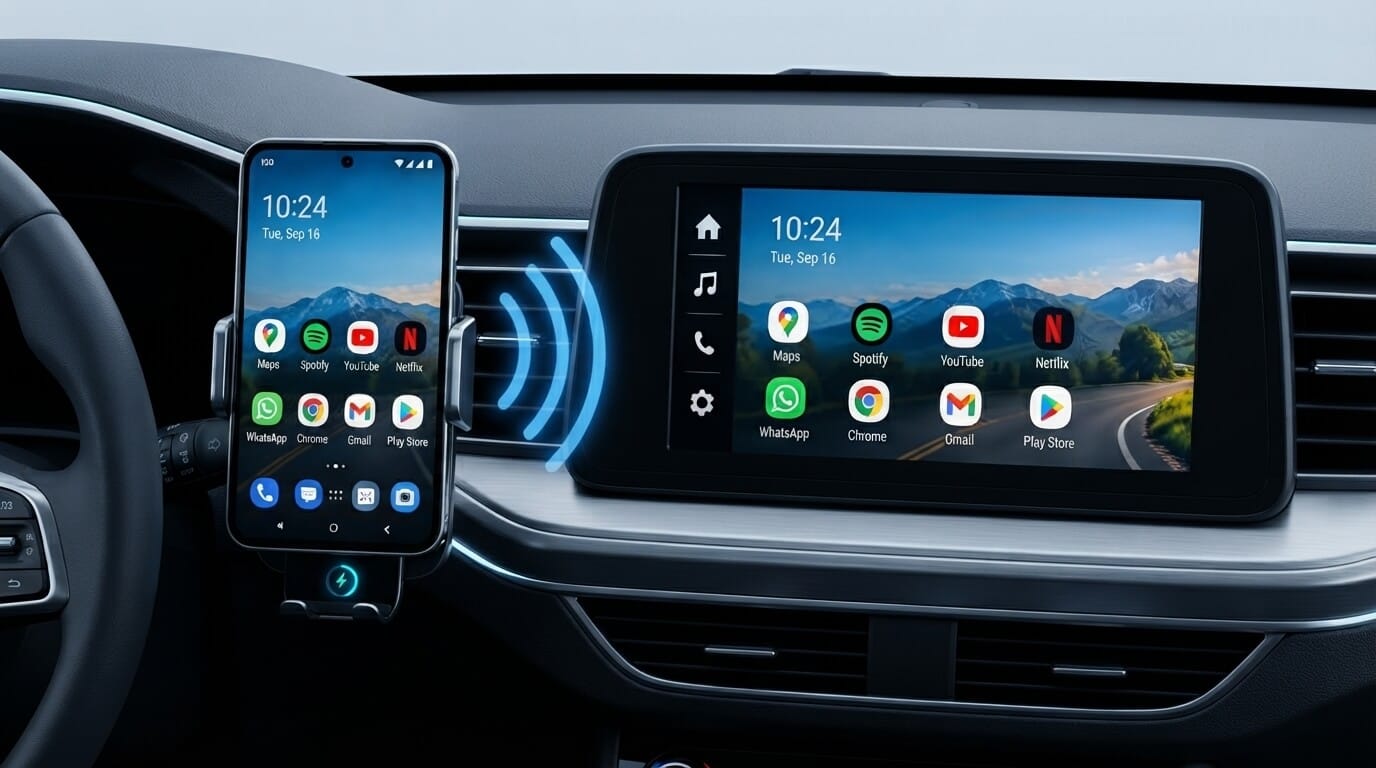
- Launch Desired Mirroring Projection: Full-screen vs. side-by-side mode. Tap either ScreenOnAuto or ScreenOnAuto (Legacy) from the car display launcher:
- Full Screen: Replaces the map display for maximum screen real estate.
- Legacy Mode: Open Google Maps or Waze on the car screen first, then tap ScreenOnAuto (Legacy) to run screen mirroring side-by-side with your map.
- Confirm Screen Capture Permission: Android MediaProjection handshake. On initial launch per session, your phone will display a standard Android screen capture dialog. Tap Start Now on your phone screen. Your phone display will instantly beam to the head unit.
- Optimize Display Scaling: Orientation and aspect ratio calibration.
- Tap the on-screen Force Landscape button to force your phone into widescreen orientation.
- If black bars or padding remain, adjust fine-tuning settings under Settings → Advanced → Adjust Mirror Width / Height.
Advanced Features & Privileged Shizuku Setup
Connecting ScreenOnAuto to Shizuku unlocks system-level capabilities without requiring full Android root access:
- Turn Physical Phone Screen Off: Powers down the smartphone's physical screen panel while continuing high-fps mirroring on the car display. This prevents phone overheating, battery drain, and cabin glare during night drives.
- Real Touch Injection: Enables native multi-touch gestures, drag-and-drop, swipe scrolling, and pinch-to-zoom directly from the vehicle's touchscreen.
- System Navigation Overlay: Displays floating Back, Home, and Recents buttons on the car screen without relying on Android Accessibility Services.
- Aspect Ratio Source Matching: Reshapes the phone screen resolution directly to match the head unit's exact aspect ratio, eliminating black side bars at the rendering source.
Frequently Asked Questions (FAQ)
- Why do apps like Netflix, Disney+, or Prime Video show a black screen?
This is caused by Android's hardware-level HDCP DRM (Digital Rights Management) protection. Android blocks MediaProjection APIs from capturing protected video streams. This is an operating system security feature and cannot be bypassed by any screen-mirroring app.
- How do I wake up my phone screen after "Turn Screen Off" powers it down?
When Shizuku powers off the phone screen panel, physical phone touch inputs are disabled. To wake your phone screen up, either press your phone's Power button twice, tap the Auto Dim toggle on your car's touch display, or disconnect Android Auto.
- Why does the mirror launcher open to a blank screen on my car display?
A blank display indicates that the Android Screen Capture (MediaProjection) permission dialog is sitting unconfirmed on your smartphone. Pick up your phone and tap Start Now on the system prompt.
- Why is the ScreenOnAuto Media Controller icon missing from my launcher?
On newer Android Auto releases, media session proxies are automatically integrated directly into Android Auto’s native media dashboard. The missing standalone icon is expected behavior on modern Android Auto builds, and media controls continue to function through the default car media widget.